Apple Watch training load: what it means for lifters
Apple Watch Training Load compares the effort and duration of your last 7 days with your last 28. For strength training, you rate the effort yourself: how to do it and how to read it.

Apple Watch Training Load compares the intensity and duration of your workouts over the last seven days with the previous 28 days, then places you on a scale from well below to well above your usual level. For strength training, the watch does not estimate your effort: you rate it from 1 to 10 at the end of the workout. And it sees neither your weights nor your sets: it measures what your sessions cost you, not what you lifted.
Apple added Training Load in watchOS 11, in 2024. It was built with cardio in mind, where the watch works out the effort on its own from heart rate, GPS and elevation. For a lifter it is still useful, as long as you know what moves it and what it ignores.
What Training Load measures
Training Load combines two things for each recorded workout: the effort rating and the duration. Apple turns them into a weighted average over 28 days, then compares your last seven days with that average.
The result reads on five levels, which Apple's announcement names: well below, below, steady, above, well above. Apple's guide says the point is to understand the relative strain on your body and decide whether it is sustainable.
Apple does not publish the exact formula. The idea is close to a well-studied method in sport science, session RPE: you rate the whole session on a 0 to 10 scale and multiply that rating by its length in minutes. A 2017 review gives the example of an 87-minute session rated 4, which comes to 348 units. The method has been validated on very different sessions, from cycling to basketball, and found reliable for resistance training.
To see it on the watch, open the Activity app, tap the training load button, then turn the Digital Crown: the chart covers the last seven days. Tap your load under the chart to see the workouts behind it.
For strength training, you rate the effort
For a cardio workout, the watch suggests a rating based on your heart rate, age, height and weight. For strength training, Apple says you enter the rating yourself at the end of the workout. Without your rating, the watch has no effort to count for that session.
On the watch, at the end. Swipe right in the Workout app, tap End, turn the Digital Crown to pick your rating, then confirm.
On the watch, later. Scroll through the workout summary, tap Effort and change the rating.
On the iPhone. Open the Fitness app, tap Sessions, choose the workout, tap Effort, drag the slider, then tap Update.
Rate the whole session, not your last set. Session RPE asks for one overall rating, given after the fact. A 2004 study on resistance training found that heavy, short sets are rated harder than light, long ones, and that the session rating holds steady from one time to the next: it is reliable as long as you always give it the same way.
The math: duration weighs as much as effort
With session RPE, a long, moderate session can weigh as much as a short, hard one. And in strength training, rest minutes count toward duration, even though they lift nothing.
Take a heavy 45-minute session rated 8: 45 × 8 = 360 units. A lighter 75-minute session rated 5 gives 375 units. The second one weighs slightly more, even though the first took you much closer to failure. On a heavy lift, where you rest several minutes between sets as explained in how long to rest between sets, a good part of the session happens sitting on the bench.
The same math over a week shows what moves the number. Baseline: the upper/lower split, four 60-minute sessions rated 7.
Three things stand out. Adding 2.5 kg to every exercise, at the same duration and rating, changes nothing: your progress is invisible to the watch. A deload week drops the load by about 46%: the watch should place it below your average, and that is the point. One extra session lifts the week by 25%, whatever the quality of the work you did in it.
What Training Load does not see
Apple Watch knows neither what you lift nor how many sets you do: a strength workout records duration, heart rate and an estimate of calories. The Apple Watch strength training guide covers what the watch records and what it leaves out.
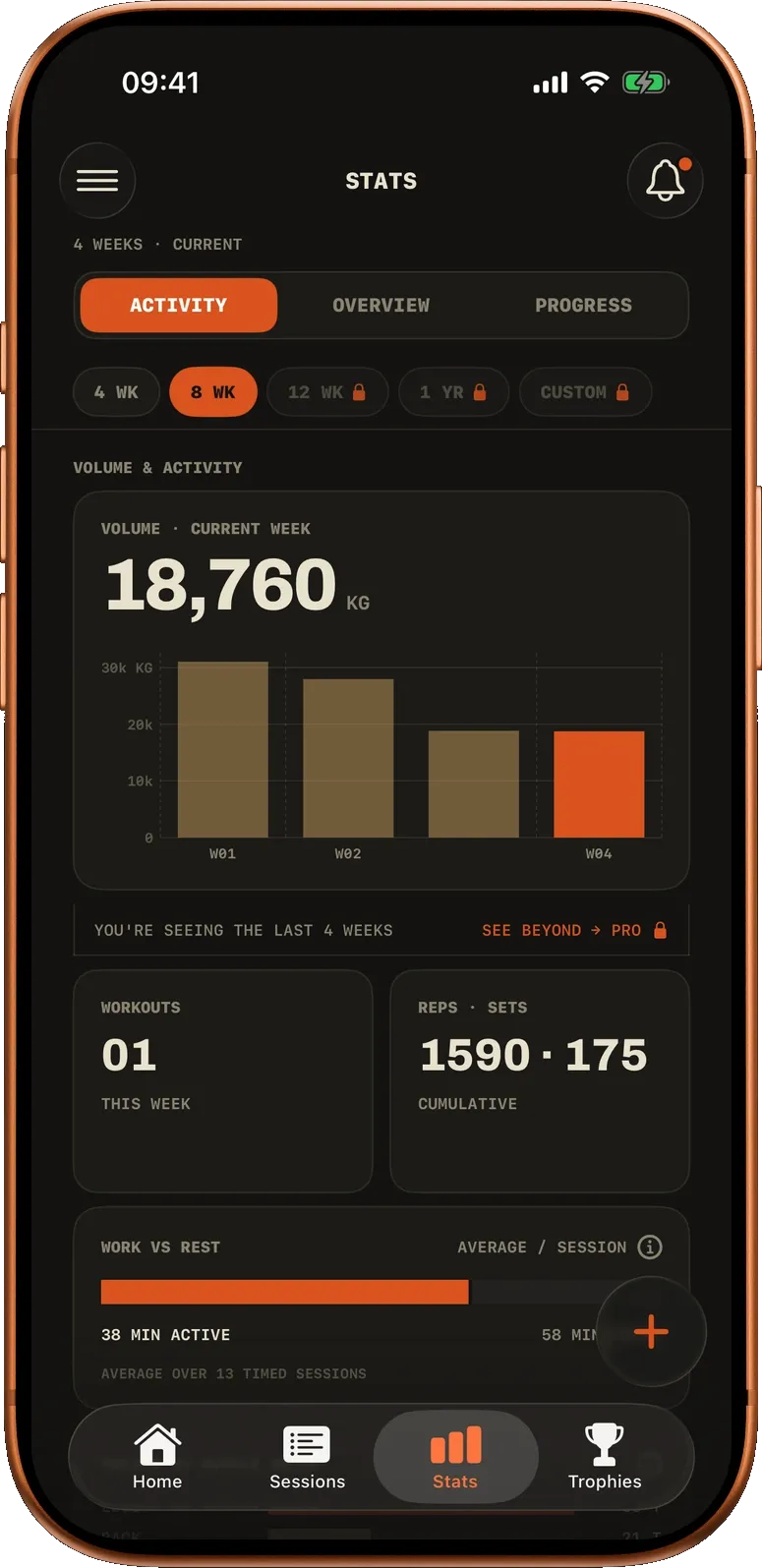
Yet your strength progress lives in those numbers. Progressive overload means adding kilos, reps or sets over time. Your weekly volume, in kilos or in sets per muscle, tells you whether you are doing more than usual on what matters for strength. Training Load only tells you that you spent time working hard.
To get both, log your sets in a tracking app. In Basalt Lab, you set weight and reps with the Digital Crown and log the set from your wrist; your stats then show your volume week after week. With Pro, an alert tells you when your volume runs past your average: the same logic as Training Load, applied to what you lift.
How to use it through a strength block
Read Training Load as a fatigue gauge, not a score to beat. It answers one question well: am I putting myself through more than usual over the last seven days?
At the start of a block. If you add a session or sets, the load moves above your average. For a week or two, that is normal: the 28-day average catches up.
Several weeks well above. If you stay well above while your lifts stall or your sleep gets worse, it is time to look at the strength plateau checklist or to plan a lighter week.
After a deload. The load drops below, then climbs back when you resume: that dip shows the deload happened, not that you went backward.
If you also run. The Filter button in the Activity app isolates one workout type: you see the load from strength training alone, without your runs. It helps you see which part of your week pushed the total up.
Pain that keeps coming back from one session to the next is not something a metric can fix: have it checked by a health professional.
Frequently asked questions
Does Apple Watch Training Load count strength training?
Yes, if you start a workout on the watch and rate your effort at the end. The watch only estimates effort for cardio; for strength training, your rating multiplied by the duration gives the session its weight.
What effort rating should I give a strength session?
Rate the whole session from 1 to 10, thinking about what it cost you overall. A heavy session taken close to failure gets a high rating, a technique or comeback session a lower one. What matters most is rating the same way every time.
Can I change the rating after the workout?
Yes. On the watch, open the workout summary and tap Effort. On the iPhone, open the Fitness app, tap Sessions, choose the workout, tap Effort, then Update.
Is Training Load enough to track strength progress?
No. It measures effort and time, not kilos or reps: a week where every lift went up can show the same load as the week before. For strength, you need to log your sets.
Training Load tells you how much you put yourself through, your log tells you whether it pays off: keep both.
Sources
- Track your training load on Apple Watch, Apple Support, Apple Watch User Guide, watchOS 27.
- Start a workout on Apple Watch, Apple Support, Apple Watch User Guide, watchOS 27.
- watchOS 11 brings powerful health and fitness insights, Apple Newsroom, June 10, 2024.
- A new approach to monitoring exercise training, Foster C. et al., Journal of Strength and Conditioning Research, 2001.
- Monitoring exercise intensity during resistance training using the session RPE scale, Day M. L. et al., Journal of Strength and Conditioning Research, 2004.
- Session-RPE Method for Training Load Monitoring: Validity, Ecological Usefulness, and Influencing Factors, Haddad M. et al., Frontiers in Neuroscience, 2017.