Apple Watch complications for workouts: your gym face
Three complications cover a strength session: Timers for rest, Heart Rate, Workout. Which watch face holds them, and how to make it appear on its own at the gym.

For lifting, three complications do the job: Timers to start your rest with one tap, Heart Rate to check where you are after a heavy set, and Workout to open the app in one move. Put them on a six-slot face like Modular, then link that face to a “Gym” Focus so it shows up on its own when you turn the Focus on.
A complication is a small shortcut on the watch face: it shows a piece of information and opens its app when you tap it. The face you wear at the office is not built for the gym. Between sets you have a few seconds and busy hands, so every slot has to earn its place that day.
The three complications that matter during a session
Rest, effort and starting the session: that is all the watch needs to show you at a glance. Everything else can wait until you are done.
Timers. The app offers two complications, “Timer” and “Added Timers”. In the app, one tap starts a preset duration (1, 3 or 5 minutes, or a recent timer), and a custom timer is set with the Digital Crown. Create the ones that match your usual rest periods: on a heavy lift, rest is counted in minutes, as covered in how long to rest between sets.
Heart Rate. It opens the Heart Rate app. Handy to see whether you have recovered before another heavy set, without turning it into a rule: your breathing and your legs are still the best judges.
Workout. It opens the Workout app, where the list of workouts follows the ones you pick most. If you use a tracking app that logs your sets, give this slot to that app instead: the Workout app logs neither sets nor weights.
| Complication | What it does at the gym | Keep it? |
|---|---|---|
| Timers | Starts a rest period with one tap | Yes |
| Heart Rate | Opens your heart rate | Yes |
| Workout | Opens the Workout app | Yes, or your tracking app |
| Stopwatch | Times an effort, with laps | Useful for planks or circuits |
| Activity | Shows your rings | Optional |
| Battery | Shows the watch charge | Useful on long sessions |
| Weather, Calendar, Stocks | Nothing during a session | No |
Which watch face to pick for the gym
Pick a face that holds several complications you can read at a glance. According to Apple’s guide, Modular has six complications, Modular Ultra has seven on Apple Watch Ultra, and Infograph has up to eight.
Modular is the simplest choice: six slots, a clear time display, and complications that show text. Put the timer in the largest slot: it is the one you look at most.
Infograph fits more complications, but they are smaller. Eight shortcuts is usually more than you actually look at during a set.
Modular Duo has only three, two of them large. If you want a clean face, it works well: timer, heart rate, and your tracking app.
To edit a face, touch and hold it, tap Edit, then swipe to the last screen: the complications are there. Tap a slot, turn the Digital Crown to choose, then press the Digital Crown to save.
Make it appear on its own with a Focus
A Focus can switch your watch face. Create a “Gym” Focus on your iPhone, give it your gym face, and the face shows up as soon as the Focus is on.
On your iPhone, open Settings, then Focus, and create a custom Focus. In its settings, tap Choose under the Apple Watch image, select your gym face, then tap Done. The Focus is set up on the iPhone, but it also appears on the watch.
To turn it on at the gym, press the side button on the watch to open Control Center, then tap the Focus control. It turns on on your iPhone too, and filters the notifications you chose. You can also schedule it for your usual training times.
What complications do not show
None of Apple’s complications know your sets, reps or weights: the watch does not log them. For that you need a tracking app, open on your wrist during the session.
That is where the face steps aside. With Basalt Lab on Apple Watch, you set the weight and reps with the Digital Crown, log your set from your wrist, and start your rest from the watch. The Timers app stays useful if your tracking app has no timer of its own.
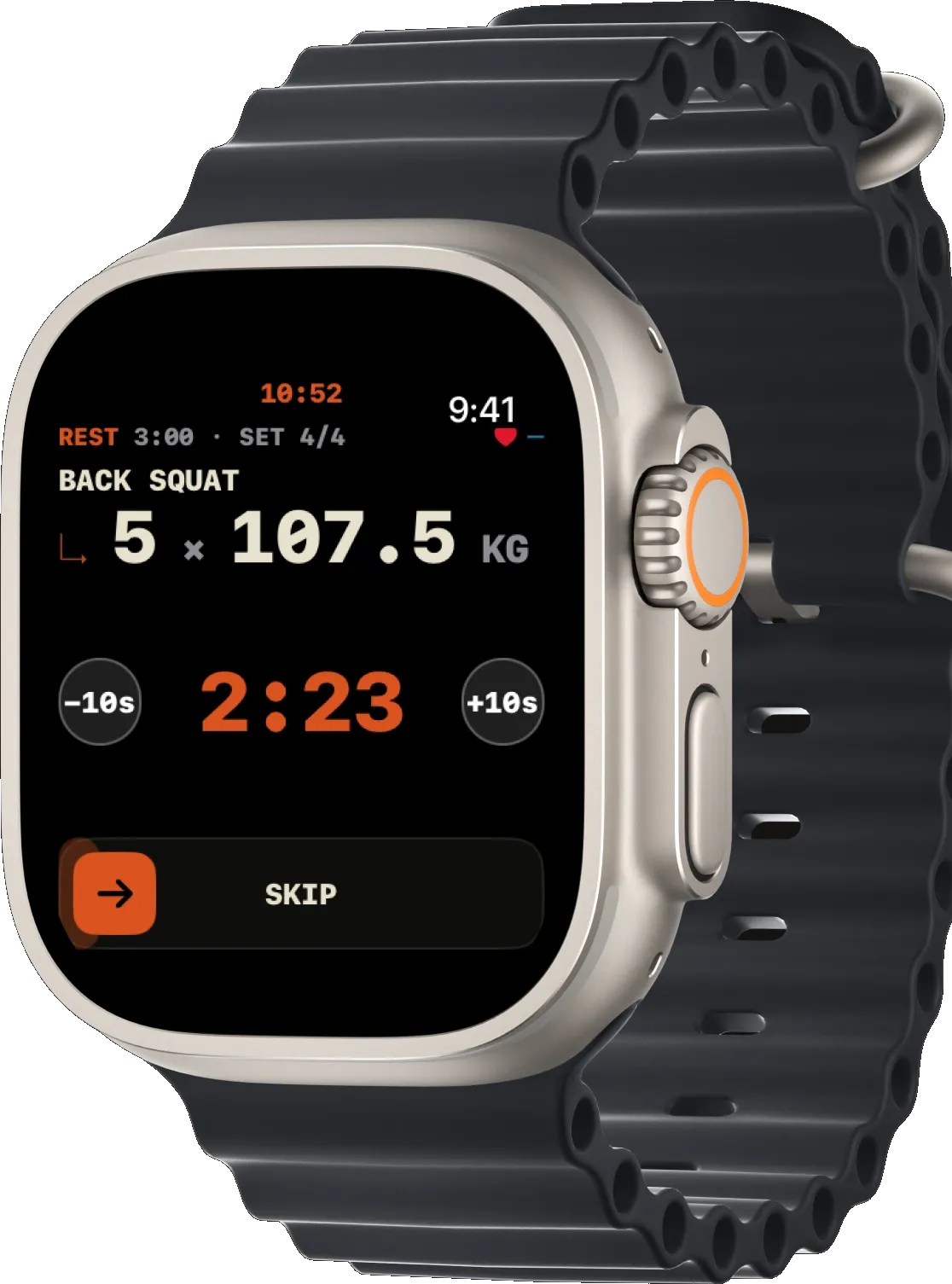
Your iPhone has to stay within range: it is what records the session. The details are in log a workout on Apple Watch without your phone in hand.
The Smart Stack, the other shortcut
If your face runs out of room, the Smart Stack takes over. Turn the Digital Crown up from the watch face: it shows widgets and Live Activities, such as a workout or a running timer.
According to Apple, a Live Activity appears on the watch face and at the top of the Smart Stack, so a timer you started stays in view when you go back to the face. You can also add the Workout widget, which shows your three most recent workout types. To customize it, scroll to the bottom, tap Edit, then add or pin the widgets you want to keep.
Frequently asked questions
Which complication should I use for rest time?
Timers. Create one timer for each rest length you use, for example 2 and 3 minutes, then put the “Timer” or “Added Timers” complication on your face. One tap restarts it after each set.
Do I need a separate face for the gym?
It is not required, but it is simpler. A dedicated face keeps only what helps during a session, and a Focus brings it up without you having to look for it.
Can I see my sets on the watch face?
Not with Apple’s complications: none of them log your sets or weights. During the session, your tracking app, open on your wrist, shows them.
Should I still start the Workout app?
You do not need it to track your strength progress. The Workout app measures duration and heart rate, not what you lift; the pillar on Apple Watch and strength training explains why.
A good gym face is three shortcuts and nothing else: your rest, your effort, and the app that logs what you lift.
Sources
- Add complications to the watch face on your Apple Watch, Apple Support, Apple Watch User Guide, watchOS 27.
- Apple Watch faces and their features, Apple Support, Apple Watch User Guide, watchOS 27.
- Use Focus on Apple Watch, Apple Support, Apple Watch User Guide, watchOS 27.
- Set timers on Apple Watch, Apple Support, Apple Watch User Guide, watchOS 27.
- View Live Activities on Apple Watch, Apple Support, Apple Watch User Guide, watchOS 27.
- Start a workout on Apple Watch, Apple Support, Apple Watch User Guide, watchOS 27.